Piping MTO from your ISO drawings
TakeOffTrak reads the BOM on every ISO you upload and builds the material takeoff: pipe, fittings, flanges, valves, gaskets, bolting, and supports. Every row is highlighted on the drawing it came from. You review it and export it to Excel.
Every row traces back to the drawing
Click a line in the takeoff and the matching BOM row lights up on the ISO. That is how you check it, and it is how you answer the question when somebody asks where a number came from.
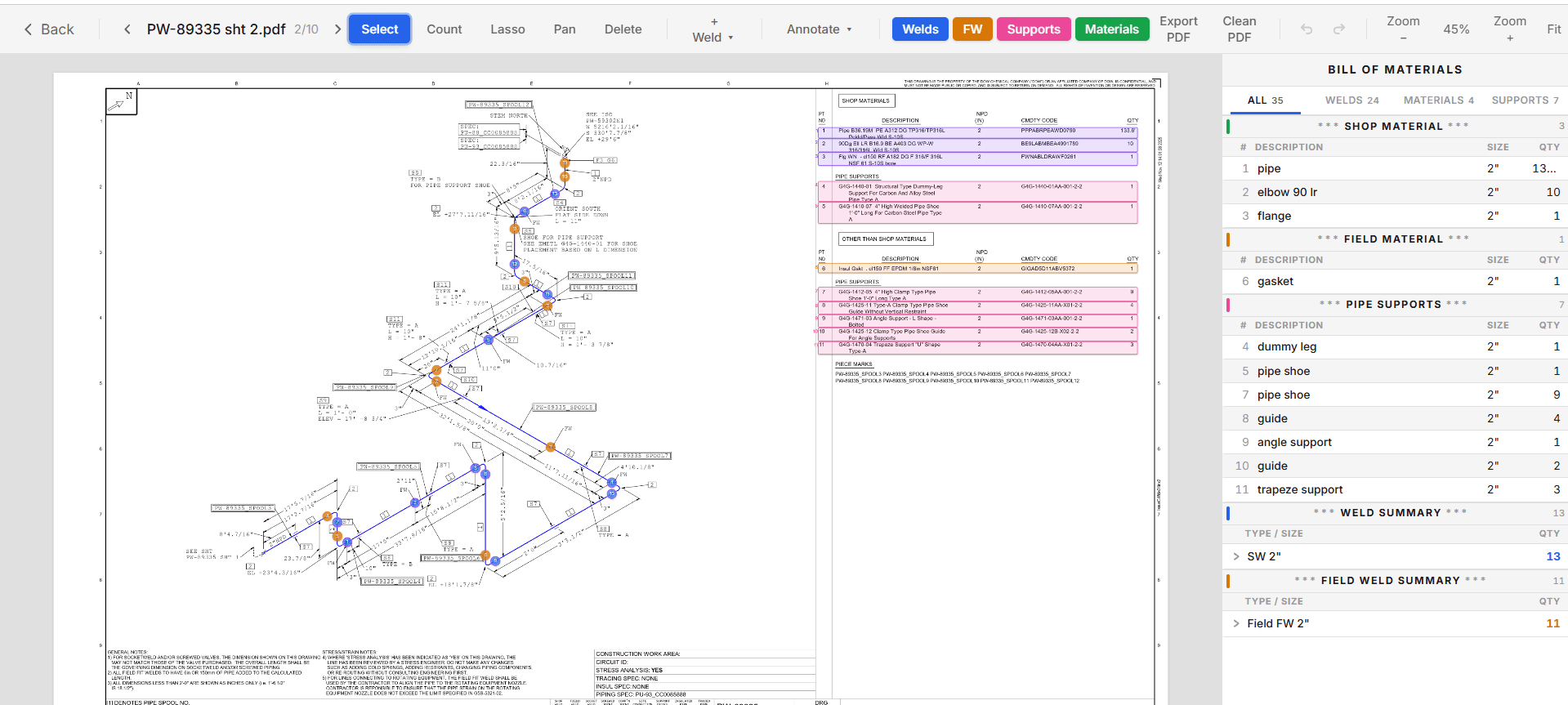
Rows that need a second look get a review flag, like a support with no size or a part count that is not a whole number. Click the flag and TakeOffTrak takes you to the item on the drawing.
What it reads
- The BOM table on each ISO: item number, description, commodity code, size, quantity, and unit.
- Reducing items with both sizes, like a 6 x 2 reducer or olet.
- Shop and field sections where the BOM prints them.
- The title block: drawing number, sheet, revision, line number, and spec.
- Vector PDFs and scanned ISOs. Scanned BOMs are read from the image.
Upload a multi-page PDF and each page becomes its own drawing. You can also upload a line list, and TakeOffTrak links each drawing to its line by line number or drawing number.
What lands in Excel
The Materials export puts every row on one sheet, with the drawing number on each row and a total at the bottom. Export shop materials, field materials, or both.
| Column | What is in it |
|---|---|
| Drawing | The drawing number the row came from |
| Section | Shop or field |
| Spec | The piping spec |
| Type | Pipe, fitting, flange, valve, gasket, bolt, support, instrument, or specialty |
| Commodity Code, Description | As printed on the BOM |
| Size, QTY, Unit | Pipe in feet (meters on metric jobs), everything else by each |
Drop it into a pivot table to roll the job up by item, size, and spec. Every total still traces back to a drawing.
The Drawing Register export lists every drawing on the job with its title block values next to its line list values. Use it to check the drawing count and revisions against the transmittal.
No drawing gets lost
Export waits until every drawing has finished processing and has a drawing number. A drawing without an identity cannot slip out of the MTO without anyone noticing.
Common questions
- Is this an MTO or a BOM?
- Both. TakeOffTrak reads the BOM on each ISO. The export puts all of them together for the job, which is your MTO. More in what is a piping MTO.
- Can I fix a row before I export?
- Yes. Edit, add, or delete any row. The export matches what you see.
- Does it work on metric jobs?
- Yes. Metric jobs export pipe in meters or millimeters.
Keep reading
- What is a piping MTOWhat a piping MTO is, what goes in one, how it differs from a BOM, and how to build one from the BOMs on a set of ISO drawings.
- Weld takeoffCount butt, socket, and olet welds on every piping ISO, split shop and field, and export the weld takeoff to Excel. Every weld is marked on the drawing.
- Pipe support takeoffCount shoes, guides, dummy legs, and other pipe supports from the ISO BOM, flag the rows that need a check, and export support quantities to Excel.
- How to take off a piping ISOA piping takeoff from ISO drawings, step by step: title block, BOM, shop and field split, weld count, supports, and the MTO rollup.