Convert piping ISO PDFs into bid-ready Excel workbooks
Upload a single ISO or a multi-page PDF bid package. TakeOffTrak splits each page into its own drawing, reads the title block, BOM, welds, and supports, lets you check every mark on screen, and exports clean Excel sheets ready for your estimating templates.
From multi-page PDF to structured rows
- 1
Upload your PDF package
Drop in single drawings or a combined multi-page PDF. Each page becomes its own drawing in the job, sorted naturally by drawing and sheet number.
- 2
Automatic extraction per drawing
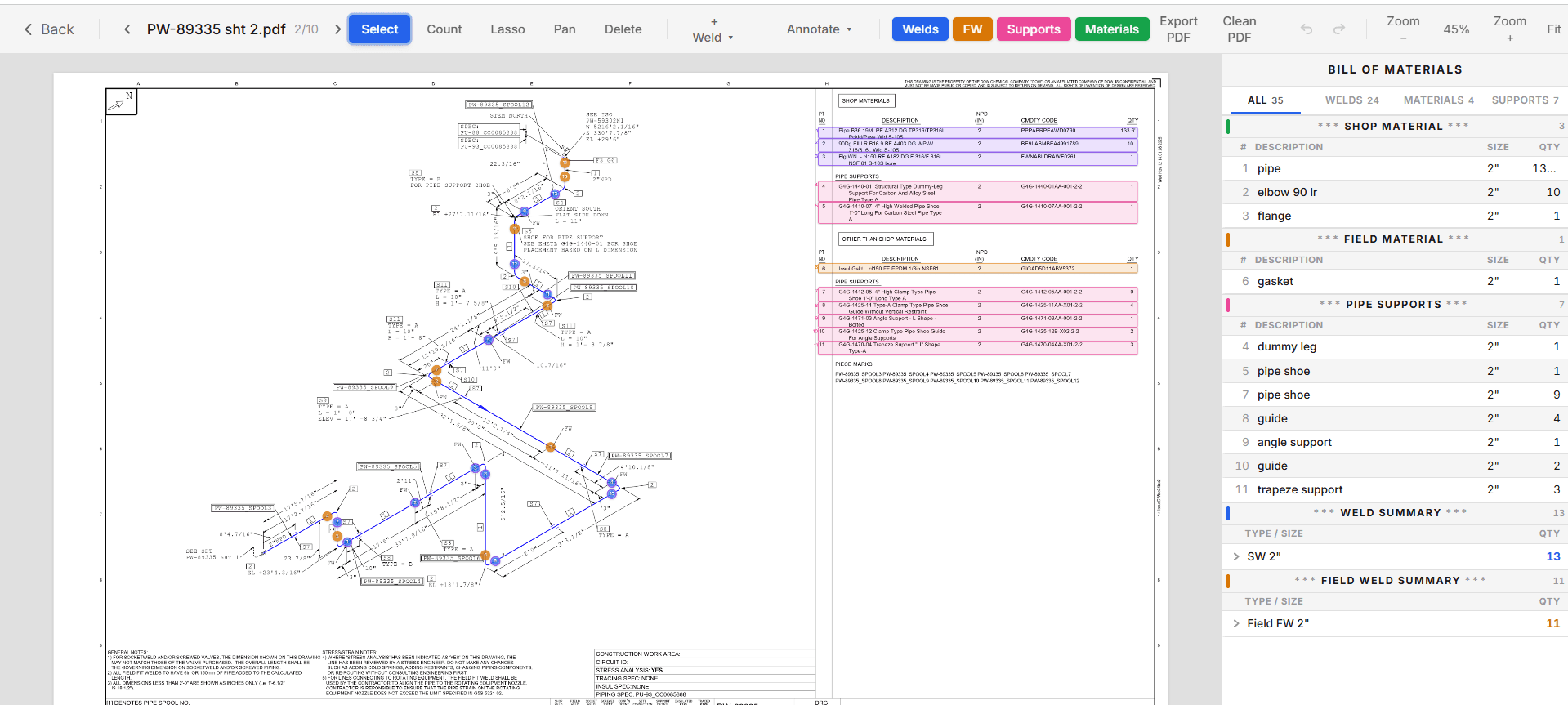
On vector PDFs, TakeOffTrak detects weld dots, classifies butt, socket, and olet welds, reads the BOM table, and extracts title block fields. On scanned PDFs, it reads the BOM from the image and flags the sheet for manual weld placement. See native PDF vs scanned ISOs.
- 3
Review on the drawing
Open the overlay editor to check marked welds and highlighted BOM rows. Review flags take you straight to items missing a size or needing confirmation.
- 4
Export to Excel
Download structured .xlsx workbooks with one row per item or per drawing and pipe size, ready to drop into your labor and pricing sheets.
Five standard Excel exports included
| Export | Granularity | Key columns |
|---|---|---|
| Weld Takeoff | One row per drawing and NPS | Drawing, NPS, spec, material, schedule, shop and field BW/SW/olet counts, shop supports |
| Materials MTO | One row per BOM line | Drawing, section (shop or field), spec, type, commodity code, description, size, qty, unit |
| Paint | One row per drawing and NPS | Drawing, NPS, paint spec, pipe and fitting counts, square feet, equivalent linear feet |
| Insulation | One row per drawing and NPS | Drawing, NPS, insulation spec, component counts, equivalent linear feet, support cutouts |
| Drawing Register | One row per drawing | Drawing identity plus paired Title Block and Line List columns |
Built-in checks before download
TakeOffTrak blocks export until every drawing in the job has finished processing and carries a valid drawing number. A failed page or an unidentified sheet cannot quietly drop out of your workbook.
Jobs auto-detect imperial (NPS and feet), metric (DN and millimeters), or NPS-metric (NPS diameters with meter lengths) conventions, so your exported sizes and length units stay consistent across the entire workbook. See the NPS to DN chart.
Common questions
- Can I upload a 200-page combined PDF of ISOs?
- Yes. TakeOffTrak splits multi-page PDFs automatically so each page processes as its own drawing and receives its own drawing number from the title block.
- Does it work on scanned piping ISOs?
- Yes for the material BOM, as long as the scan is legible at 100 percent zoom and has Item No., Description, Size, and Quantity columns. Welds require vector PDF linework; on scans you place welds with the on-screen weld tool.
- Can I export only shop scope or only field scope?
- Yes. Both the Weld Takeoff and Materials exports let you pick shop, field, or both before downloading the workbook.
Keep reading
- Weld takeoffCount butt, socket, and olet welds on piping isometric (ISO) PDFs without a 3D model, split shop and field, and export diameter inches to Excel.
- Piping MTOExtract the BOM from piping isometric (ISO) PDFs into an Excel MTO without a 3D model, split shop and field, with every row highlighted on the drawing.
- Pipe fabrication estimatingBrowser-based pipe fabrication estimating software for piping isometric PDFs. No 3D model needed. $449/mo, unlimited users, Excel exports, 14-day trial.
- Native PDF vs scanned ISOsThe difference between native vector PDFs and scanned piping ISOs, the four required BOM columns, and a 30-second check before starting a takeoff.